How to Extract Text from an Image into Word via OCR
Transform physical paperwork, book photos, and scanned receipts into editable DOCX files using high-precision neural Optical Character Recognition (OCR) with zero permanent storage.
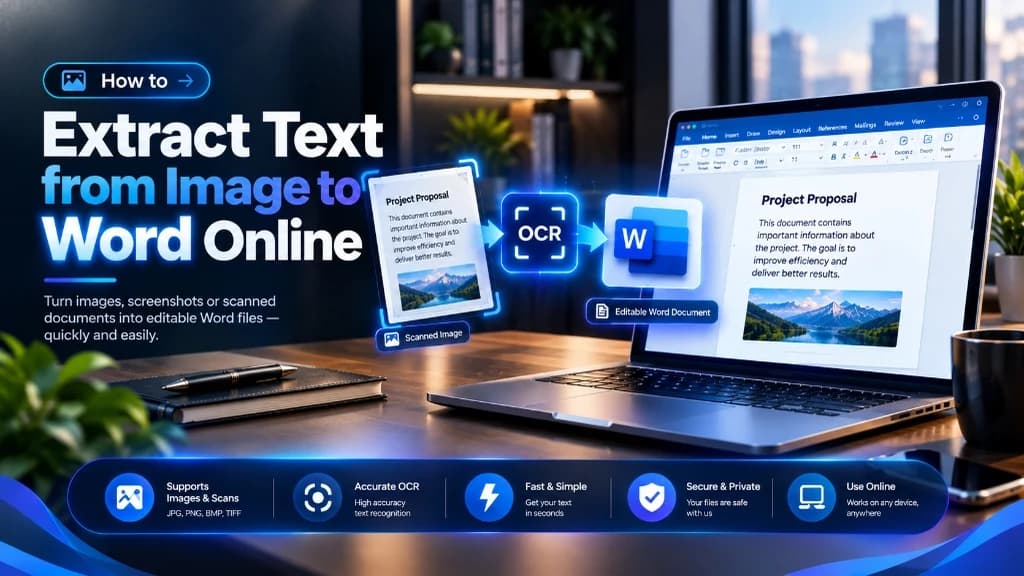
Re-typing printed contracts, receipts, or book pages by hand is slow and frustrating. Optical Character Recognition (OCR) changes that. OCR is software that reads letter shapes in photos and turns them into editable digital text. Compixor's free Image to Word tool performs high-accuracy neural OCR over secure HTTPS. You can convert JPG, PNG, and scanned photos into clean Word (.docx) files in seconds. Best of all, your files are processed in temporary memory and never stored on our servers.
Secure Server • Zero File Storage
Try the Free Image to Word Tool
How Modern Neural OCR Technology Works
Modern Optical Character Recognition encompasses a multi-stage machine learning and image processing pipeline:
- ✓Binarization & Adaptive Thresholding: Cleans up shadows and background tint from your photo. It turns the image into crisp black ink on pure white paper so characters stand out clearly.
- ✓Deskewing & Perspective Correction: Straightens crooked captures. It automatically corrects angled smartphone photos, leveling tilted text lines before reading.
- ✓Neural Character Recognition: Uses deep learning models to identify letter shapes. It easily distinguishes tricky character pairs, like the number '1', lowercase 'l', and uppercase 'I'.
- ✓Layout & Table Analysis: Reconstructs document structure. It organizes recognized words into real paragraphs, bulleted lists, and structured Word tables instead of loose text fragments.
Best Practices to Maximize OCR Accuracy
Following simple photography and scanning principles dramatically improves conversion accuracy to over 99%:
- ✓Ensure Even Lighting: Avoid harsh directional shadows cast by hands or smartphones when photographing printed pages.
- ✓Maintain High Resolution: Aim for minimum 300 DPI for scanned documents or 8+ megapixels for smartphone photos of standard letter-sized sheets.
- ✓Keep Camera Parallel to Page: Avoid capturing pages from sharp diagonal angles to minimize geometric distortion.
- ✓Clean, High-Contrast Text: Dark ink on clean white paper produces near-perfect transcription; faded dot-matrix printing may require manual spot checks.
OCR Accuracy Benchmarks Across Different Document Types
Expected character recognition fidelity across varying source inputs:
| Document Type | Typical Accuracy Rate | Post-Conversion Editing Required |
|---|---|---|
| Standard Scanned Book / Contract (300 DPI) | 99.2% - 99.8% | Near Zero (Minor punctuation check) |
| Smartphone Photo of Printed Page | 96.5% - 98.5% | Verify proper nouns and numerical data |
| Financial Receipt or Thermal Till Slip | 92.0% - 96.0% | Review faded totals and store address |
| Multi-Column Newspaper / Academic Journal | 95.0% - 98.0% | Confirm column reading sequence |
| Cursive Handwriting | Variable (Best with print-style) | Manual verification recommended |
Note:Accuracies measured using clean modern Latin font models. Compixor automatically formats recognized table rows into native Word tables.
Step-by-Step Guide: How to Convert Images to Word Online
Digitize physical paperwork into editable format in three easy steps:
- 1Upload Image: Drag your JPG, PNG, or WEBP photo into the Compixor Image to Word OCR workspace.
- 2Neural Recognition Processing: The secure OCR engine processes the image in volatile memory, performing binarization, deskewing, and glyph identification.
- 3Download Editable DOCX: Save your converted document. Open it in Microsoft Word to edit paragraphs, copy tabular data, and share seamlessly.
Confidentiality: Keeping Personal Scans & Receipts Safe
Photographed passports, driver's licenses, tax forms, and medical invoices are intensely private. Compixor transmits your images over secure HTTPS solely for OCR processing; they are processed over encrypted HTTPS and not stored; deleted right after processing.
Related Companion Guide
Convert PDF to Editable Word Without Layout Loss →Experience Free Image to Word Tool
Encrypted HTTPS transmission with zero permanent file storage, no watermarks, and no sign-up required.
Launch Tool in BrowserFrequently Asked Questions
Yes. High-resolution smartphone photos of printed documents, book pages, receipts, and signs convert seamlessly into editable Word documents.
Yes. The layout analyzer identifies table cell boundaries and bullet points, structuring them into native Microsoft Word tables and lists.
The current model supports English and Latin-script languages (Spanish, French, German, Italian, Portuguese) with high character fidelity.
Never. Your images are transmitted over encrypted HTTPS solely to perform character recognition, processed in volatile memory, and deleted immediately with zero permanent storage.
Ready to test it yourself?
Process your files securely with zero limits, zero permanent storage, and complete privacy.

Haroon Ali
Written by Haroon Ali • Compixor AI Editorial